
Planned Breaks
Schedule breaks at fixed times like lunch or an afternoon walk, without breaking your flow.
Planned Breaks happen at fixed times you choose — like a lunch pause or an afternoon walk. They run independently of your focused screen time and replace any regular break that would land nearby, so you don't get two breaks back to back.
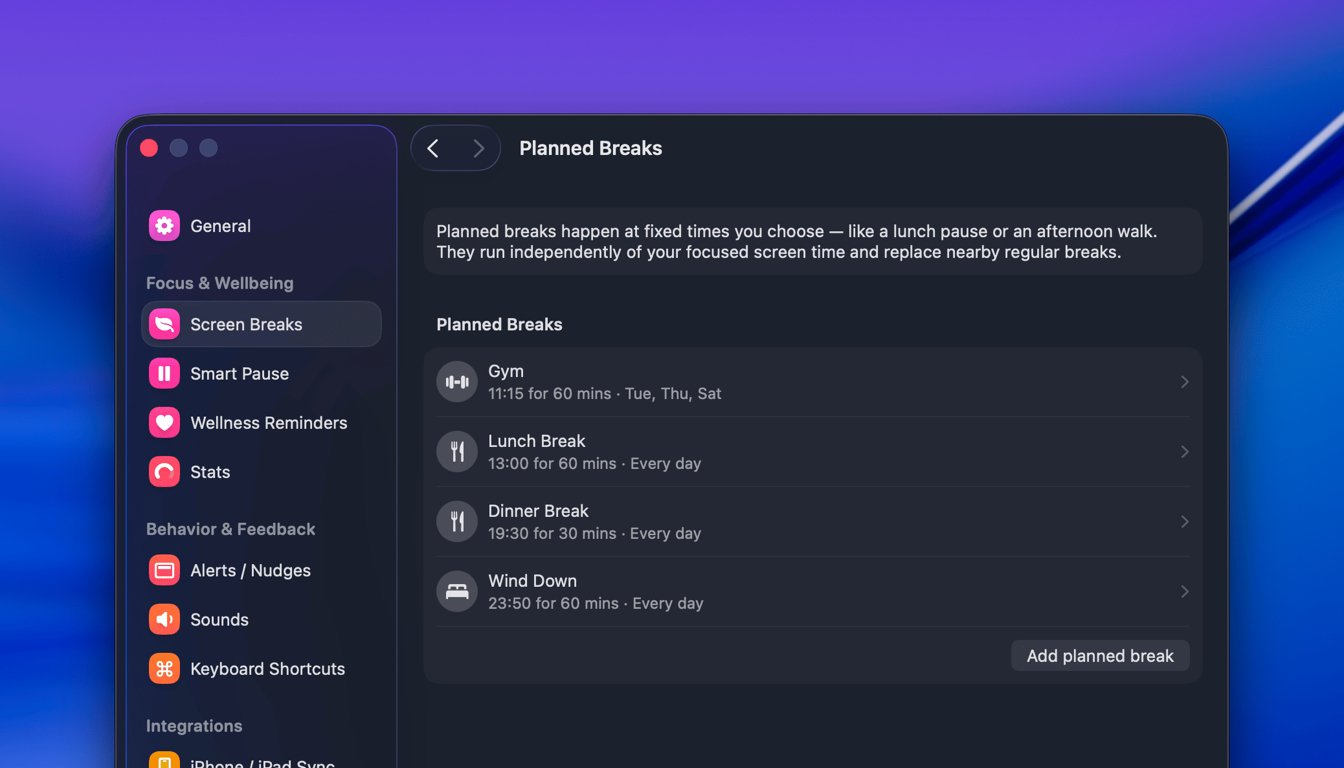
How planned breaks differ from regular breaks
Regular breaks are interval-based: LookAway shows them after a certain amount of focused screen time, and they follow your Office Hours.
Planned breaks are different:
- They start at a fixed time of day (e.g. always at 1:00 PM), not after a stretch of screen time.
- They run independently of Office Hours, as long as LookAway is running.
- They have their own name, icon, and duration.
- They don't affect your break streak — they're tracked separately from regular breaks.
- They suppress nearby regular breaks within a short window, so two breaks never stack up.
Creating a planned break
Open Settings → Screen Breaks → Planned breaks and click to add one.
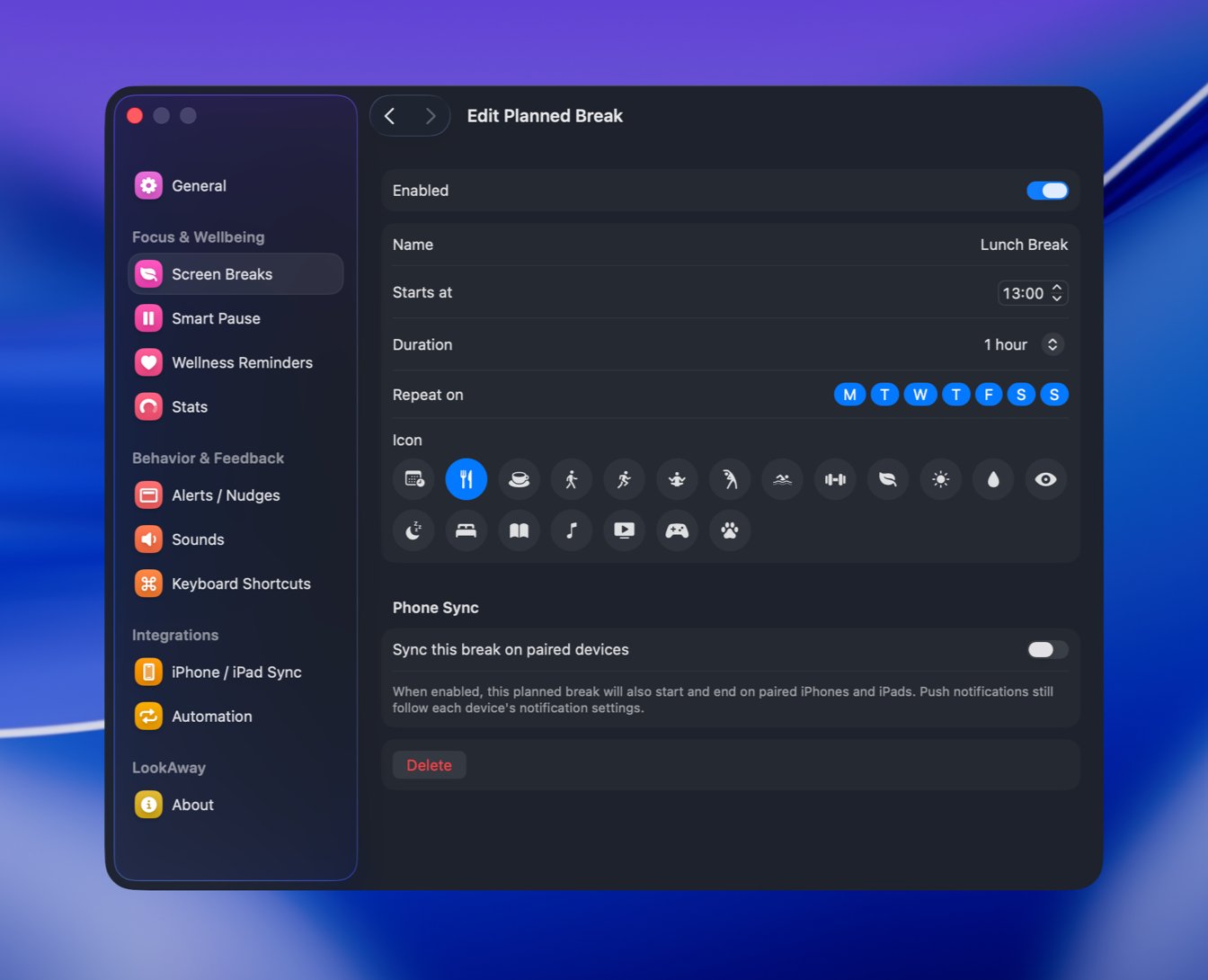
You can configure:
- Name – A label like "Lunch" or "Afternoon walk".
- Starts at – The time of day the break should begin.
- Duration – Anywhere from 1 minute to 2 hours.
- Repeat on – Choose individual days, or use the Weekdays, Weekends, or Every day presets. At least one day must be selected.
- Icon – Pick an icon to make the break easy to recognize.
- Enabled – Turn a planned break off without deleting it.
Two planned breaks can't overlap on the same day. If a break extends past midnight, LookAway lets you know it ends the next day.
Breaks that respect your flow
Like Smart Pause, planned breaks won't interrupt you at a bad moment. If a planned break is due while you're busy, it waits and shows you why instead of taking over the screen.
A planned break is deferred when you're:
- In a meeting or on a call
- Sharing your screen or recording
- Watching a video
- Gaming in fullscreen
- Working in a deep-focus app
- In a macOS Focus mode
- Manually paused
When the activity ends, the break becomes ready. LookAway also applies a short grace period after activity ends, so a break doesn't appear the instant a meeting finishes.
Away time counts toward the break
If you step away during a planned break's window — your Mac is idle or locked — that time counts toward the break:
- If you're away for the full duration, the break completes on its own with no interruption.
- If you're away for part of it, LookAway offers the remaining time when you return.
When a break catches you mid-task
If a planned break can't start on time and is picked up a little late, LookAway asks instead of forcing it. You can:
- Start Now – Begin the full break immediately.
- Snooze +5m – Push it forward by five minutes (if you have snoozes available).
- Skip Today – Skip just this occurrence. There's no penalty, even on stricter discipline levels.
If the remaining window becomes too short to be useful, the break is skipped for the day rather than flashing on screen for a few seconds.
iPhone and iPad sync
If you have LookAway on a paired iPhone or iPad, you can turn on sync for a planned break so it starts and ends on those devices too. Push notifications still follow each device's own notification settings.
Notes
- There's no limit on how many planned breaks you can create as long as they don't overlap.
- Recurrence is weekly — you choose which days of the week a break repeats on.