LookAway
 LookAway
The best eye care app for Mac is the one you still keep running after the first week.
That is where most screen break tools fail. A basic 20-20-20 timer can help for a day or two, then it interrupts a meeting, fires during a video, breaks your concentration while you are typing, or becomes one more notification to dismiss. Once you start skipping breaks by reflex, the app has already lost.
The job is harder than showing a countdown. A good break reminder has to protect your eyes, respect your focus, fit around calls and deep work, and feel normal enough that you do not turn it off.
Where simple 20-20-20 timers fall short
The 20-20-20 rule is still a useful baseline: every 20 minutes, look about 20 feet away for 20 seconds. The American Optometric Association recommends it for digital eye strain, and it works because it gives your focusing system a chance to relax.
The rule helps. Timing decides whether you will actually follow it.
When you are reading, designing, coding, editing, studying, or answering messages, your attention narrows. You blink less completely, you hold the same near focus for too long, and you rarely notice discomfort until your eyes already feel dry or heavy. Those are classic Mac eye strain patterns. A timer helps only if it catches them without becoming a new source of friction.
What a good app should do
Before installing anything, look for the details that decide whether you will keep it enabled:
| What to check | Why it matters |
|---|---|
| Smart pause | Breaks should not fire during meetings, screen sharing, gaming, full-screen video, or focused app use. |
| Gentle enforcement | If every break can be skipped instantly, the habit will not stick. If breaks are too strict, you will disable the app. |
| Custom timing | A student, designer, developer, and support operator do not all need the same cadence. |
| Multi-monitor behavior | Mac users often work across external displays, and the break should account for the full setup. |
| Break quality | A good break tells you what to do: look far away, blink fully, relax your jaw, roll your shoulders. |
| Low notification noise | Eye care should not feel like another productivity app begging for attention. |
| Progress feedback | Stats should help you notice patterns, not shame you for a long workday. |
| Mac-native polish | The app should feel at home on macOS: menu bar access, keyboard shortcuts, Focus awareness, and fast settings. |
If an app only satisfies the first two rows, it is probably just a timer. That can be enough for some people, but a reliable break habit needs more support.
Do not confuse display comfort with eye care
macOS already includes features that can make your screen more comfortable. Night Shift shifts the display toward warmer colors after dark, and Focus modes can silence notifications when you need fewer interruptions. These tools help, while breaks handle a different problem.
Night Shift may help late-night screen comfort and sleep hygiene, but it cannot make you blink fully, change focus distance, or release the tension that builds from staring at a nearby display. Focus mode reduces notification noise. Your eyes still need a break from a four-hour work stretch.
Blue-light glasses fall into the same bucket. They might feel good for some people, but the strongest evidence is weak. A 2023 Cochrane review found that blue-light filtering lenses may not reduce short-term eye strain from computer work compared with regular lenses. I wrote a deeper breakdown on whether blue-light glasses actually work if you want the evidence.
The practical stack is simpler:
- Use Night Shift or warmer color temperature when the room gets dim.
- Use Focus modes when notifications are the problem.
- Fix monitor height, distance, glare, and lighting. OSHA's computer workstation guidance is a good baseline, and this monitor distance guide goes deeper for real desk setups.
- Use a break reminder when the missing habit is looking away, blinking fully, and taking short recovery breaks throughout the day.
That last job is the one a dedicated app should own.
The reminders should adapt to real work
The easiest way to make a break reminder annoying is to treat every minute of screen time the same.
A 20-second reminder can help while you are casually browsing. During a client presentation, it feels careless. A break during a paused YouTube video might be useful. During a full-screen movie, it becomes noise. A reminder while you are typing a sentence can feel worse than the same reminder 10 seconds later.
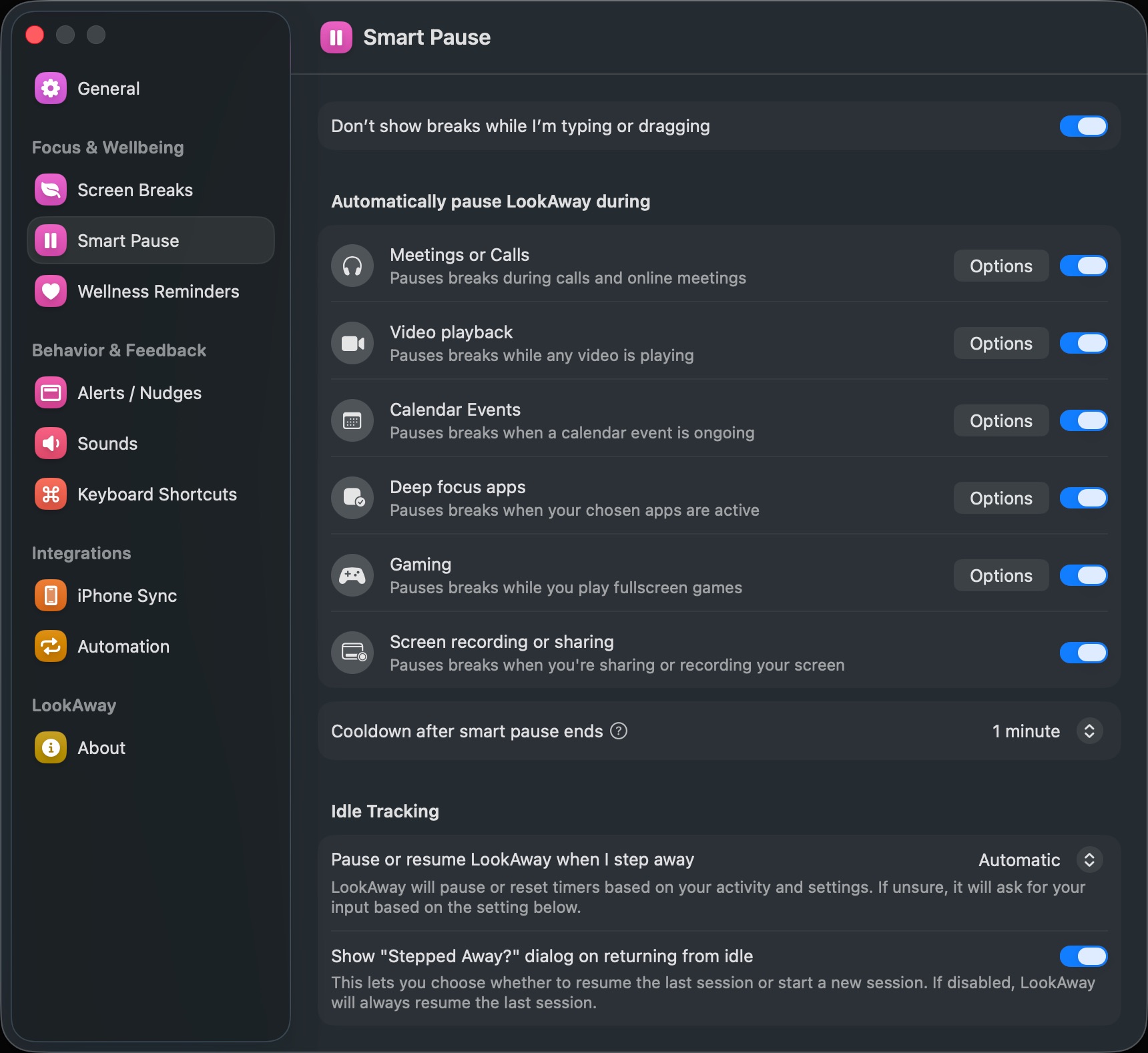
This is where smart pause matters. The app should step back during calls, meetings, screen sharing, video playback, games, and chosen deep-focus apps, then resume by itself. Otherwise you get a second failure mode: you pause the habit manually and forget to turn it back on. This is also why break reminders and Pomodoro apps solve different problems.
Breaks should be hard enough to happen
There is a small trap in many wellness apps: they are so easy to skip that they become decorative.
If you can dismiss every break instantly, your future self has to make the healthy choice dozens of times a day. The habit turns into a negotiation with the busiest version of you.
Strict lockouts can backfire too. If a break blocks urgent work at the wrong moment, people do not become healthier. They uninstall the app.
The better middle ground is adjustable enforcement: casual when you need flexibility, balanced when you want a real pause, stricter when you know you will override anything gentle.
Good stats beat guilt
Screen time stats can be useful, but only if they answer the right question.
A raw "You used your Mac for 9 hours" number does not tell you much. Long screen days happen. The better question is: how much of that time was focused, how many breaks did you actually take, and did the day end with your eyes feeling better or worse?
Look for stats that help you see patterns:
- Did you skip breaks more often during a certain part of the day?
- Did meetings push recovery time later?
- Did a stricter break setting reduce end-of-day eye heaviness?
- Are you taking enough long breaks, or only tiny pauses?
Good stats give you enough feedback to adjust the system without turning your body into a scoreboard.
How LookAway approaches it
LookAway is built around one idea: the best reminder is the one that helps without constantly interrupting.
It gives you screen breaks for the 20-20-20 habit, but it also handles the messy parts of real Mac use. Smart Pause can step back during calls, meetings, video playback, screen sharing, deep-focus apps, and games. Break enforcement lets you decide how easy or hard skipping should be. Wellness reminders can nudge you to blink, fix posture, or reset your body during a long day. Screen Score and stats show whether your setup is actually working.
LookAway should feel closer to muscle memory than another task manager. Breaks become automatic enough that you stop thinking about them.
For most people, a good starting setup is:
- Set screen breaks to every 20 to 25 minutes.
- Keep breaks short: 20 to 45 seconds is enough for a visual reset.
- Use balanced enforcement so you cannot skip instantly out of reflex.
- Enable Smart Pause for meetings, video playback, screen sharing, gaming, and deep-focus apps.
- Add one longer break every hour or two for posture and movement.
- Check stats after a week and adjust the cadence instead of guessing.
That is a small setup, but it solves the real problem: remembering to recover before your eyes are already tired.
When a simple timer is enough
A simple 20-20-20 timer can still be fine if your work is flexible, you do not take many calls, and you rarely ignore reminders.
But if you spend six or more hours on a Mac, use external monitors, jump between meetings and focused work, or regularly end the day with dry or heavy eyes, you probably need something more adaptive.
The right app stays out of the way when it should, gets firmer when you need it, and quietly turns healthy breaks into a default part of your day.
That is the bar worth using.

Try LookAway
LookAway is a smart break reminder that helps reduce eye strain, digital fatigue, and maintain better posture - so you can end your day feeling fresh.