You've been chasing a bug for three hours. The code is finally making sense, you're in the zone, and then it hits. That familiar burning sensation in your eyes. You blink hard, rub your eyes, and realize you haven't looked away from your monitor since lunch. Sound familiar?
For us, eye strain is more than just an occasional annoyance. It's a daily occurance that comes with staring at code for 8-12 hours a day.
Why Developers Suffer More Than Most
Software developers face a unique mix of factors that make eye strain especially brutal. Unlike typical office workers who switch between emails, spreadsheets, and meetings, developers often spend hours in deep focus on dense, text-heavy screens. The mental effort of reading and writing code keeps us locked in. We forget to blink, shift focus, or even move.
The Perfect Recipe for Eye Strain
Several factors make coding particularly hard on your eyes:
- Dense text and small fonts: Code is packed with information. We cram as much logic as possible onto each screen, often using 12-14pt monospace fonts that demand intense focus to read.
- High contrast syntax highlighting: Syntax highlighting helps us parse code faster. But the constant switching between bright colors on dark backgrounds keeps your eyes working overtime.
- Extended focus sessions: The famous "flow state" that makes developers productive also makes us forget basic self-care. Studies show programmers blink up to 66% less when deeply focused.
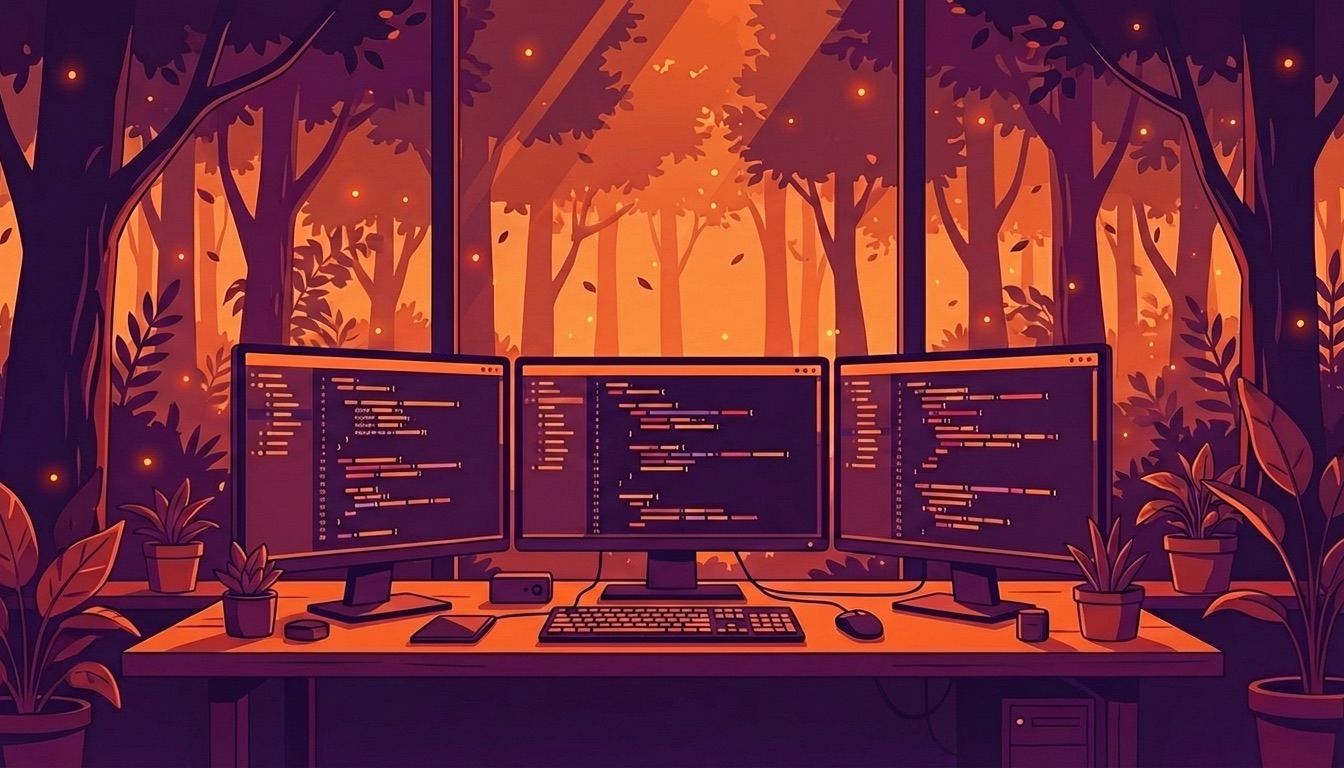
- Multiple monitor setups: Many developers run dual or triple monitor configurations. This forces constant eye movement across wide viewing angles.
A study from the Vision Council found that 59% of adults who use digital devices for more than two hours daily experience symptoms of digital eye strain. For developers who routinely double or triple that screen time, the numbers are even worse.
More Than Just Tired Eyes
The problems go beyond simple eye discomfort. Chronic eye strain triggers a chain reaction. You get tension headaches that kill your afternoon productivity. Neck and shoulder pain creeps in from unconsciously leaning toward your screen. And that frustrating inability to focus makes even simple code reviews feel exhausting.
I've talked to developers who thought their declining productivity was burnout. It was actually unaddressed eye strain building up over months. Once they made a few targeted changes, their energy and focus came back.
Optimizing Your IDE and Editor for Eye Comfort
Before you start tweaking system settings, look at where you spend most of your time: your code editor. Whether you use VSCode, Cursor, Xcode, or Terminal, small adjustments here pay huge dividends.
Font Choice and Size Matter
The font you stare at for 8+ hours daily is one of the most impactful choices you can make. Not all monospace fonts are equal when it comes to eye comfort.
Recommended developer fonts for reduced eye strain:
- JetBrains Mono: Built specifically for developers, with increased letter height and distinct characters (easily distinguish
0O,1lI) - Fira Code: Includes programming ligatures that reduce visual noise
- Source Code Pro: Adobe's open-source option with excellent readability
- Cascadia Code: Microsoft's modern font with optional ligatures
Bump your font size up to at least 14-16pt. Yes, you'll see fewer lines of code, but your eyes will thank you. The productivity you lose from scrolling more is nothing compared to what you lose from eye fatigue mistakes.
Theme Selection: Dark Mode Isn't Always the Answer
The dark mode vs. light mode debate is more nuanced than most developers realize. Dark themes are popular, but they're not always better for your eyes.
When dark mode works best:
- Low-light environments like evening coding or dimly lit rooms
- High-contrast displays
- OLED screens where true blacks reduce overall light output
When light mode might be better:
- Well-lit offices with natural light
- Extended reading sessions like documentation or code review
- If you see "haloing" effects around text on dark backgrounds
The real key is matching your theme to your environment. A dark theme in a bright room creates harsh contrast that strains your eyes. For more on this topic, check out our analysis of whether Dark Mode is actually better for your eyes.
I switch between themes throughout the day. Solarized Light in the morning when my office is bright, then One Dark Pro as the sun sets. I automate this using the "Auto" appearance setting in macOS.
Syntax Highlighting Tweaks
Default syntax highlighting schemes often prioritize looks over eye comfort. Consider these adjustments:
- Reduce color variety: Themes with 15+ distinct colors create visual chaos. Look for themes that use 6-8 colors max.
- Lower saturation: Highly saturated colors like pure red or bright yellow are harder on your eyes. Muted palettes are gentler.
- Consistent contrast: Make sure all your syntax colors have similar contrast ratios against the background. One overly bright element forces constant adjustment.
Terminal and Command Line Optimization
Developers spend a surprising amount of time in the terminal (now more than ever with Claude Code and Codex taking over). Default configurations are rarely set up for comfort.
Terminal Theme and Colors
Apply the same principles from your IDE:
- Choose a color scheme designed for extended use like Solarized, Dracula, or Nord
- Increase font size to at least 14pt
- Enable font smoothing and anti-aliasing
- Consider reducing transparency effects that can blur text against varying backgrounds
Prompt and Output Readability
A cluttered terminal prompt adds mental load:
- Keep your prompt short but informative
- Use subtle colors rather than bright attention-grabbing ones
- Configure your shell to add spacing between command outputs for easier scanning
The Developer's Break Strategy
Taking breaks is the single most effective fix for eye strain. But standard advice doesn't account for the reality of software development. You can't just stop mid-debug session every 20 minutes. Or can you?
Why the 20-20-20 Rule Needs Adaptation
The classic 20-20-20 rule says to look at something 20 feet away for 20 seconds every 20 minutes. It's scientifically sound, but developers need a modified approach that respects flow states.
The Developer-Adapted Break Strategy:
- Micro-breaks every 20-30 minutes: Don't stop coding. Just shift your gaze to something distant for 20 seconds while your code compiles, tests run, or you think through a problem.
- Short breaks every 60-90 minutes: Step away from the keyboard for 2-5 minutes. This lines up with natural pauses like finishing a feature or completing a PR.
- Long breaks every 2-3 hours: Take 10-15 minutes to completely disconnect. Walk around, get coffee, or do some eye strain relief exercises.
Automating Breaks Without Killing Flow
The challenge is remembering breaks when you're deep in code. This is where tools become essential.
LookAway is built for exactly this problem. It gently reminds you to look away at set intervals. More importantly, it detects when you're in a meeting or presenting and pauses automatically. It never interrupts at the wrong moment. The brief screen blur creates just enough friction to trigger the habit without destroying your train of thought.
Strategic Break Activities
Not all breaks are equal. Use your breaks to actively undo the effects of screen work:
- Focus shifting: Look out a window and let your eyes relax on distant objects
- Blinking exercises: Consciously blink slowly 10-15 times to re-moisten your eyes
- Neck rolls and stretches: Address the tech neck that comes with coding posture
- Hand and wrist stretches: Prevent RSI while you're at it
Hardware and Workspace Setup
Your physical environment affects eye strain just as much as any software setting.
Monitor Positioning and Settings
The top of your monitor should be at or slightly below eye level, about an arm's length away (20-26 inches). This matters even more for developers using multiple monitors.
Multi-monitor ergonomics:
- Position your primary monitor directly in front of you
- Angle secondary monitors inward at 30-45 degrees
- Keep all monitors at the same height and distance
- Consider a slight curve to your setup to reduce head turning
Display settings to adjust:
- Brightness: Match your screen brightness to your room lighting. Your screen shouldn't glow like a lightbulb in a dim room.
- Refresh rate: Higher refresh rates (120Hz+) reduce flickering and can ease eye strain for some people.
- Resolution and scaling: Use your display's native resolution. Don't be afraid to increase UI scaling if text feels small.
For a complete workspace setup guide, our work from home ergonomics checklist covers everything from chair height to lighting.
Lighting Your Coding Space
Bad lighting multiplies eye strain. The goal is balanced, indirect lighting that reduces contrast between your screen and surroundings.
- Avoid overhead lighting directly above your monitor: It creates glare and harsh shadows.
- Use bias lighting: A soft light behind your monitor reduces the contrast between the bright screen and dark surroundings.
- Control natural light: Position your desk perpendicular to windows, not facing them or with them behind you.
- Match color temperatures: If you use warm lighting in your room, consider warming your screen's color temperature to match using Night Shift, f.lux, or your monitor's settings.
Building Sustainable Habits
Knowledge means nothing without action. Here's how to actually make these changes stick.
Start Small and Stack Habits
Don't try to overhaul everything at once. Pick one change from each category:
- This week: Increase your IDE font size by 2 points
- Next week: Set up automated break reminders
- Week three: Adjust your monitor position and lighting
- Ongoing: Refine based on what's working
Track Your Symptoms
Pay attention to when your eyes feel worst:
- End of day? You need more breaks.
- After specific tasks like code review or debugging? Those tasks need specific fixes.
- Certain times of day? Your lighting might need adjustment as natural light changes.
Your Eyes Are Your Most Important Dev Tool
You wouldn't run a production server without monitoring. Your eyes deserve the same attention. The strategies in this guide aren't about being precious or unproductive. They're about sustainable performance over a career that might span 30+ years of screen time.
Start with the lowest-effort, highest-impact changes. Bump up your font size, install a break reminder, and position your monitor correctly. These three changes alone can dramatically reduce eye strain within days.
Your future self, still coding comfortably decades from now, will thank you.

Try LookAway
LookAway is a smart break reminder that helps reduce eye strain, digital fatigue, and maintain better posture - so you can end your day feeling fresh.
Learn more