If you've ever wrapped up a long day on your Mac with eyes that feel tired, dry, or blurry, you're definitely not alone. To actually reduce eye strain, you first have to understand what's causing it—from the way we forget to blink when we're focused to the constant glare bouncing off our screens. Tackling these issues with some practical, Mac-specific tweaks is the key to getting back to comfortable, productive work.
Why Your Mac Might Be Causing Eye Strain
That all-too-familiar feeling of gritty, aching eyes after hours staring at your Mac has a name: digital eye strain, or what the experts call Computer Vision Syndrome (CVS). It's more than just a minor annoyance; it's a real collection of symptoms that can tank your comfort, focus, and productivity. For those of us who live on our Macs for work, getting to the "why" is the first step toward relief.
The Science Behind Screen Fatigue
Your eyes are working overtime when you're focused on a screen. Unlike the crisp, clean edges of text on a printed page, the pixels on your display are brightest at the center and fade slightly at the edges. This subtle difference forces your eyes into a constant state of refocusing to keep the image sharp, which quickly leads to muscle fatigue.
A few other factors make it even worse:
- The Blink Rate Drop: When we're concentrating, we tend to blink up to 66% less often than we normally would. Blinking is your eyes' natural cleaning and moisturizing system. When you do it less, your eyes get dry, irritated, and blurry. It's a direct cause-and-effect.
- Glare and Reflections: Those beautiful, glossy Mac screens can sometimes act like mirrors. They catch reflections from overhead lights and windows, creating a distracting glare that makes your eyes work that much harder to see what's actually on the screen.
- Poor Contrast and Tiny Text: Forcing your eyes to read poorly contrasted text or squint at tiny fonts for hours on end puts a serious strain on the ciliary muscles inside your eyes—the ones responsible for focusing.
More Than Just Tired Eyes
Digital eye strain rarely stays just in your eyes. The discomfort often radiates, triggering other physical symptoms that can mess up your entire workday. Many people start experiencing tension headaches, neck and shoulder pain from hunching over, and a frustrating inability to concentrate—all stemming from that initial visual discomfort.
The impact here is huge. A comprehensive analysis covering more than 20 countries found that roughly 66% of knowledge workers suffer from CVS. This makes it the number-one occupational hazard for this group in the 21st century. You can dig into more of these findings over on SmarterGo.com.
Creating an Ergonomic Mac Workspace
Before you touch a single setting in macOS, let's talk about your physical setup. Your workstation is the foundation for comfortable, strain-free work, and getting it right can solve a lot of problems before they even start.
Think of it this way: your body and your screen are in a relationship all day long. If you're constantly hunching, craning your neck, or squinting at glare, you're creating physical stress that leads directly to tired eyes and headaches. Let's build an environment that works for you, not against you.
Position Your Mac for Perfect Posture
This is the single most important first step. An improperly placed screen forces your neck and eye muscles into unnatural, strained positions for hours at a time. It's a recipe for discomfort.
The golden rule is to place your monitor so the top edge of the screen is at or just slightly below your eye level. This lets you look straight ahead or slightly down, which is the most relaxed posture for your neck. If you're on a MacBook, a good laptop stand isn't a luxury—it's an absolute necessity to get that height right.
Your screen should also be about an arm's length away, which usually works out to 20 to 26 inches from your face. At this distance, you can see everything without your eyes darting around wildly, and they can focus much more comfortably.
A huge mistake I see all the time is placing the monitor too high. It forces your chin up, straining your neck and exposing more of your eyes to the air. That can lead to faster tear evaporation and annoying dryness.
Master Your Lighting and Eliminate Glare
Glare is the arch-nemesis of happy eyes. When bright light from a window or an overhead lamp bounces off your glossy Mac screen, your eyes have to work overtime just to see what's on it.
The best way to fight this is to arrange your desk strategically. Try to place your monitor perpendicular to the main light source, like a big window. That means the window should be to your side, not directly in front of you or behind you.
Here are a few other tricks to get your lighting just right:
- Try a Matte Screen Filter: If you just can't get away from reflections, an anti-glare screen protector can be a lifesaver. It diffuses the light and makes your screen much easier to look at.
- Adjust Ambient Lighting: Working in a pitch-dark room with a blazing-bright screen is a terrible idea. That stark contrast makes your pupils work constantly. Aim for soft, even room lighting that's roughly as bright as your screen.
- Control Natural Light: Don't be afraid to use blinds or curtains to tame intense sunlight throughout the day.
Your Chair and Posture Matter More Than You Think
Eye strain isn't just an eye problem—it's a whole-body issue. Slouching in a bad chair creates tension in your neck and shoulders, and that tension often shows up as a headache right behind your eyes.
Make sure your chair has good lumbar support and allows your feet to rest flat on the floor with your knees at a comfortable 90-degree angle. Your arms should rest gently, creating a relaxed position for your wrists and shoulders.
For a complete walkthrough on dialing in every part of your setup, check out our detailed work from home ergonomics checklist. It covers everything you need for a truly pain-free workstation.
Customizing Your Mac's Built-In Display Settings
Beyond your physical workspace, your Mac itself holds some powerful—and often overlooked—tools designed to make your screen easier on your eyes. Tweaking these settings is one of the fastest ways to reduce eye strain without having to buy any new equipment. Let's walk through the most impactful adjustments you can make right inside macOS.
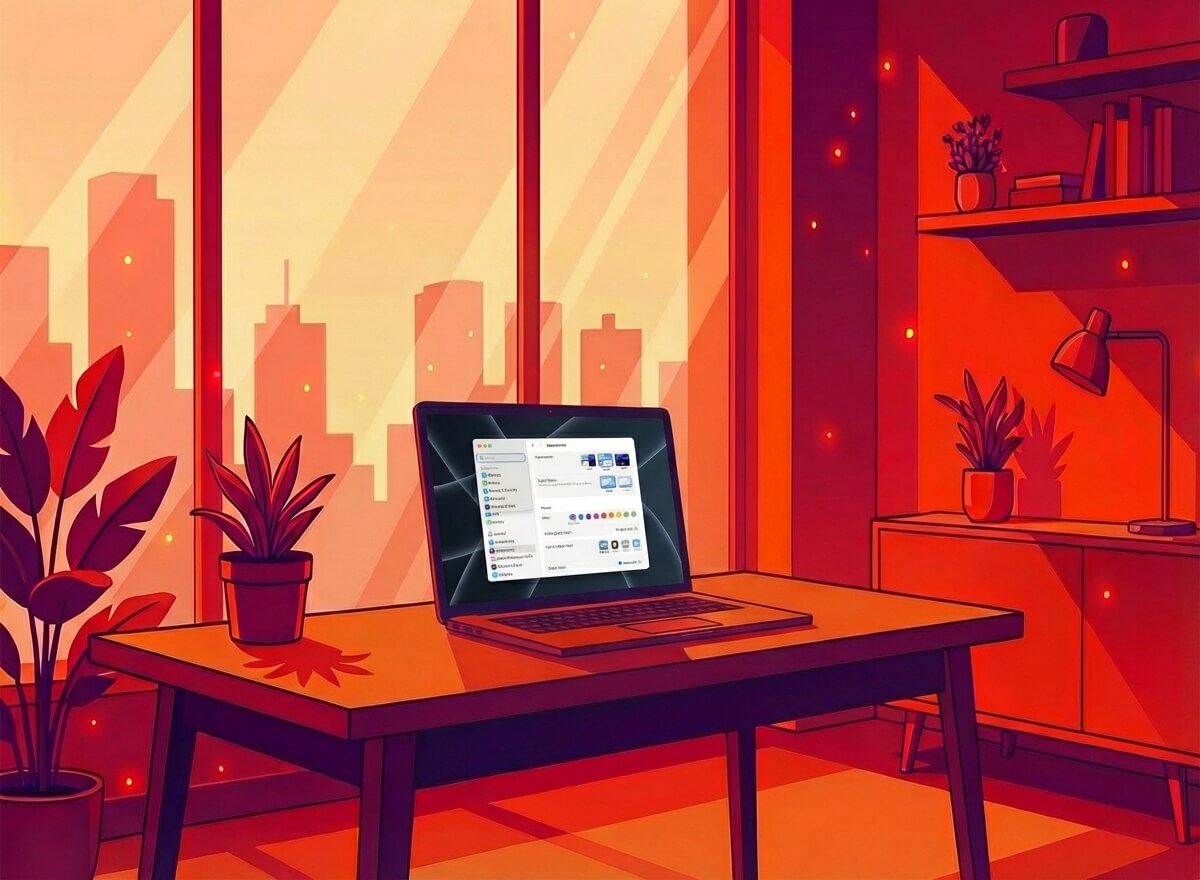
The goal here is to make your screen adapt to you and your environment, not the other way around. With just a few simple changes, you can transform a harsh, glaring display into a comfortable and readable canvas for your work.
Adjust Brightness to Match Your Room
One of the biggest culprits behind eye fatigue is a mismatch between your screen's brightness and the ambient light in your room. A screen that's too bright in a dark room is like staring into a lightbulb. On the flip side, a screen that's too dim in a bright room forces you to squint and strain.
Thankfully, your Mac makes this easy to manage.
- Enable "Automatically adjust brightness": You can find this in System Settings > Displays. This setting uses your Mac's built-in ambient light sensor to dial the screen brightness up or down to match your surroundings. It's a great set-it-and-forget-it feature that works remarkably well.
- Manual Control: For more precise control, you can always use the brightness keys on your keyboard. A good rule of thumb is to hold a white piece of paper next to your screen; the screen's white background should be about as bright as the paper.
I find that while automatic brightness is great for most situations, I often make small manual adjustments when I'm doing detailed design work. The key is to find a level that feels comfortable—where you're not staring into the sun or straining to see in the dark.
This simple balance is a foundational step toward reducing eye strain throughout your day.
Use Night Shift to Warm Your Screen
The cool, blue light from our screens is great for daytime visibility, but it can mess with your body's natural sleep cycle and contribute to eye fatigue in the evening. This is where Night Shift comes in.
Night Shift automatically shifts your display's colors to the warmer end of the spectrum after sunset. This reduction in blue light exposure can make late-night work sessions significantly more comfortable for your eyes. You can find it under System Settings > Displays > Night Shift.
You can set it to turn on automatically from sunset to sunrise or create a custom schedule that fits your own work habits. You can even adjust how "warm" you want the screen to get.
Make Text More Readable with Accessibility Settings
Sometimes, the simplest solution is to just make things bigger and clearer. macOS has fantastic accessibility features that are useful for everyone, not just those with visual impairments.
For a quick reference, here are some of the most helpful settings you can adjust right now.
Key macOS Settings to Reduce Eye Strain
| Setting | Location in System Settings | Primary Benefit |
|---|---|---|
| Increase contrast | Accessibility > Display | Makes text and interface elements stand out more clearly against their background, improving readability. |
| Zoom | Accessibility > Zoom | Allows you to magnify the screen temporarily without changing your display resolution. Perfect for focusing on small details. |
| Dark Mode | Appearance | Reduces overall screen glare by using a darker color palette, which many people find more comfortable in low-light environments. |
Let's dive a little deeper into these.
-
Increase Text Size & Contrast: In System Settings > Accessibility > Display, you'll find the option to increase display contrast, which makes text pop. For system-wide text size changes, you often need to look in individual app preferences, like in Mail or Finder.
-
Use the Zoom Feature: For moments when you need a closer look without changing your entire resolution, the Zoom feature is perfect. Go to System Settings > Accessibility > Zoom to enable it. You can set it to zoom in on the entire screen or create a picture-in-picture "lens" that follows your cursor.
-
Try Dark Mode: While not a cure-all, many users find that Dark Mode reduces overall screen glare, especially in dimly lit rooms. If you're curious about the pros and cons, you can learn whether Dark Mode is better for your eyes in our detailed guide. You can enable it in System Settings > Appearance.
Playing around with these settings takes just a few minutes, but finding the right combination can make a world of difference in your daily comfort.
Adopting Smart Break Routines and Eye Exercises
You can tweak your workspace and display settings all day, but the most powerful weapon against eye strain is surprisingly simple: taking breaks. Staring at a screen locks your eyes into a fixed position for hours, which is incredibly unnatural and exhausting for your eye muscles. For anyone serious about long-term comfort and focus, building intentional breaks into your day isn't just a good idea—it's non-negotiable.
This isn't just about feeling a little tired, either. It's a real workplace health issue. A staggering 68% of U.S. employees report dealing with digital eye strain symptoms. More than that, 69% of them say it directly hurts their performance on the job. The full study on workplace sight protection dives deeper into just how widespread this problem is.
The Power of the 20-20-20 Rule
You've probably heard of the 20-20-20 rule, and there's a good reason it's so popular: it actually works. The concept is incredibly simple but highly effective.
- Every 20 minutes of screen time…
- Look at something 20 feet away…
- For at least 20 seconds.
That's it. This quick action forces the ciliary muscles inside your eyes—the ones that handle focusing—to relax. Think of it like a mini-reset that prevents the fatigue that builds up from holding a constant, close-up focus on your Mac screen. The hard part isn't doing it; it's remembering to do it when you're deep in the zone.
Automating Breaks for Consistency
Let's be honest: relying on willpower to take breaks is a losing game, especially when deadlines are looming. This is where a dedicated break reminder app becomes an essential part of any Mac professional's toolkit.
An app like LookAway weaves the 20-20-20 rule right into your macOS workflow, so you don't even have to think about it. It gently blurs your screens at set times, showing a countdown that encourages you to look somewhere else. The best part? It's smart enough to automatically pause when it detects you're in a meeting or using certain focus apps, so it never gets in the way. By automating the habit, you ensure your eyes get the consistent rest they need to stay fresh.
Simple Eye Exercises You Can Do at Your Desk
Beyond just looking away, you can use your breaks to do some simple eye exercises. These movements relax and gently stretch your eye muscles, providing even more relief. They only take a minute or two but can make a huge difference in how your eyes feel by the end of the day.
Here are a few easy ones to get you started:
-
Focus Shifting: Hold a finger a few inches from your nose. Focus on it for a couple of seconds, then shift your gaze to something far across the room. Alternate back and forth 10-15 times. This is like a tiny workout for your eyes' focusing muscles.
-
Palming: Rub your hands together to warm them up. Then, gently cup your palms over your closed eyes without putting any pressure on them. Just breathe deeply and let the warmth and darkness relax your eyes for about 60 seconds.
-
Slow Blinking: When we're staring at screens, we tend to forget to blink, which leads to dry, scratchy eyes. Take a moment to do a few slow, deliberate blinks to re-moisten the surface of your eyes.
These exercises aren't just a quick fix for when your eyes feel tired. They're an active way to maintain your eye health. Doing them consistently helps improve muscle flexibility and reduces the cumulative stress from all those hours in front of the screen.
If you want to explore more techniques, our guide covers several other simple and effective eye strain relief exercises you can do right at your desk. Adding these small routines can turn your breaks from passive pauses into active recovery sessions for your eyes.
Beyond the Screen: Lighting, Eyewear, and Daily Habits
Tweaking your Mac's settings is a huge step, but the battle against eye strain isn't won on the screen alone. What happens in your physical workspace—your lighting, your glasses, and even your daily habits—can make all the difference. This is where you turn a decent setup into a truly comfortable one.
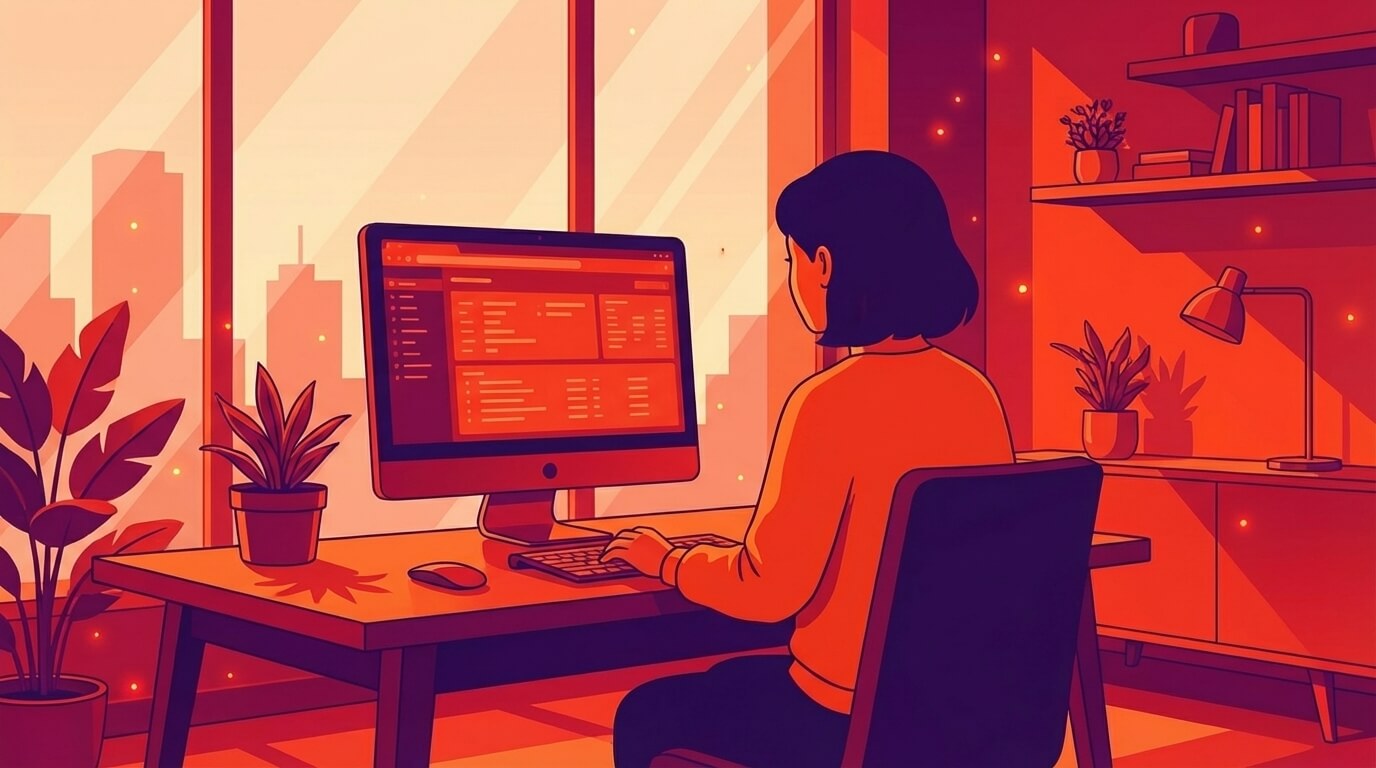
Ever worked in a dark room with your screen blasting at full brightness? That harsh contrast forces your eyes into a constant, exhausting cycle of adjustment. The goal is to create a gentle balance. You want soft, diffused ambient light that roughly matches the brightness of your display. This gets rid of that glowing-rectangle-in-a-cave effect that your eyes hate.
Mastering Your Workspace Lighting
Good lighting is more than just flipping a switch; it's about being strategic. A smart combination of different light sources creates an environment that's both comfortable and productive.
- Ambient Lighting: This is your room's overall light. Ditch the single, harsh overhead fixture. Instead, opt for lamps with shades or indirect lighting that casts a soft, even glow across the space.
- Task Lighting: For those times you're looking at paper documents or anything off-screen, a dedicated desk lamp is a lifesaver. Just be sure to position it so it lights up your papers without throwing a nasty glare onto your monitor.
This layered approach is key. It stops your eyes from having to constantly recalibrate between different light levels—a subtle but major source of strain.
A common mistake is thinking any light will do. The key is control. Having a mix of ambient and task lighting gives you the flexibility to adapt your environment throughout the day, whether it's a bright morning or a late-night work session.
The Role of Eyewear and Daily Habits
Sometimes, your eyes need an extra layer of defense, and that's where specialized glasses come in. Computer glasses are prescribed specifically for the intermediate distance of your screen (about 20-26 inches), which helps relax your focusing muscles. Most also come with an anti-reflective coating to cut down on glare and may have a slight tint to filter out harsh light.
Blue light filtering lenses are everywhere these days. While the jury is still out on just how much they reduce eye strain, many people—myself included—find they offer a noticeable degree of comfort.
Beyond the gear, simple daily habits can have a massive impact. Staying hydrated is non-negotiable, as dehydration can quickly lead to dry, irritated eyes. A healthy diet and, most importantly, getting enough sleep all contribute to your overall visual health. These small efforts add up, making your long days in front of the screen far more sustainable.
Don't underestimate the impact. Uncorrected vision problems, made worse by eye strain, can cause a staggering 63% drop in productivity. You can read more about the economic impact of remote work eye strain to see just how serious it is.
Common Questions About Mac Eye Strain
Even after you've nailed your ergonomic setup and tweaked every display setting, it's completely normal to have some lingering questions. Let's dig into a few of the most common concerns Mac professionals have about digital eye strain and get you some clear answers.
One of the biggest worries I hear is whether all this screen time can cause permanent eye damage. The good news is that, according to the American Academy of Ophthalmology, the classic symptoms of digital eye strain—like dryness, fatigue, and blurry vision—are temporary. They don't cause lasting harm to your vision.
That said, the discomfort is very real and can absolutely tank your productivity and mood. The goal is to manage those symptoms so you can work comfortably and effectively.
When to See a Doctor
So, how can you tell if what you're feeling is just normal strain or something more serious? While most symptoms can be handled with the strategies we've covered, it's probably time to see an eye doctor if you experience:
- Persistent Symptoms: Your eye discomfort just won't go away, even after you've been diligent with breaks and ergonomic adjustments.
- Double Vision: Seeing two of everything is a clear sign that you need a professional evaluation.
- Significant Vision Changes: Any sudden blurriness or trouble focusing that feels different from your usual end-of-day screen fatigue.
- Severe Headaches: If eye strain is consistently triggering intense headaches or migraines, don't just power through it.
These could point to an underlying issue, like an uncorrected vision problem or dry eye disease, that requires a professional diagnosis.
Think of it this way: the strategies in this guide are your first line of defense. If they aren't enough to reduce eye strain and bring you relief, it's time to call in an expert for a personalized plan.
Are Blue Light Glasses Worth It?
Blue light glasses are everywhere now, but do they actually do anything? The answer isn't a simple yes or no.
Right now, there isn't strong scientific evidence proving that blue light from our devices is the direct cause of eye strain. The discomfort is more often tied to things we've already talked about—reduced blink rates, screen glare, and poor ergonomics.
However, many people genuinely feel more comfortable wearing them, especially in the evening. They can cut down on glare and might even help your sleep cycle by minimizing blue light's alerting effects before bed. Ultimately, whether they work for you often comes down to personal preference. If you find they help, they're a great tool to have in your eye-care toolkit.
Conclusion
Reducing eye strain on your Mac isn't about making one big change—it's about layering several small ones. Start with your physical setup: position your screen at the right height and distance, control your lighting, and invest in a chair that supports good posture. Then, dive into macOS and tweak your display settings to match your environment and reduce harsh blue light in the evenings.
But the single most effective habit is simply taking breaks. The 20-20-20 rule works because it forces your eyes to relax and reset throughout the day. Whether you use a dedicated app or just set a timer, building consistent breaks into your workflow will do more for your long-term comfort than any single setting ever could.
Your eyes are working hard for you every day. With these Mac-specific strategies, you can work smarter, feel better, and finish each day without that familiar, frustrating ache.

Try LookAway
LookAway is a smart break reminder that helps reduce eye strain, digital fatigue, and maintain better posture - so you can end your day feeling fresh.
Learn more